Overview of Word Recovery Tool
Trusted By



Trusted By

Complete Word File Recovery Wizard
The Word recovery software recover as well as repair corrupt Word file. By following simple steps it will fix broken DOCX file quickly. It doesn’t require any technical knowledge to retrieve Word file. Advanced inbuilt algorithm removes major-level corruption. Also, minimize the risk of most common .docx document errors. With the help of added features, review the repair Word (.docx) document.

Preview Options For Recovered Word Files
After repairing a damaged Microsoft word document, its time to review the recover microsoft Word document. These functionalities will help in viewing the recover Word file within the Word Repair Software.

3 Modes to Repair Word documents
In this, Word repair tool will provide you different modes to repair Word files.

Rich Text and Plain Text: Formatting Modes
Recover Microsoft Word document in two modes: Rich Text and Plain Text.

Auto Detect DOCX File of MS word
With the help of this features, this Word repair tool will search the DOCX files from the respective drives(C:\, D:\, E:\) automatically. Also, Microsoft DOCX file recovery software will automatically detect Word files from subfolders just by enabling subfolders features. Then, you can easily repair DOCX documents selectively.
“Save” Recovered Word File
Undoubtedly, it quickly saves large recovery of Microsoft Word files. With a custom selection of the recovered Word files. Also, it helps to preview the document within the Microsoft DOCX file recovery software before saving it.
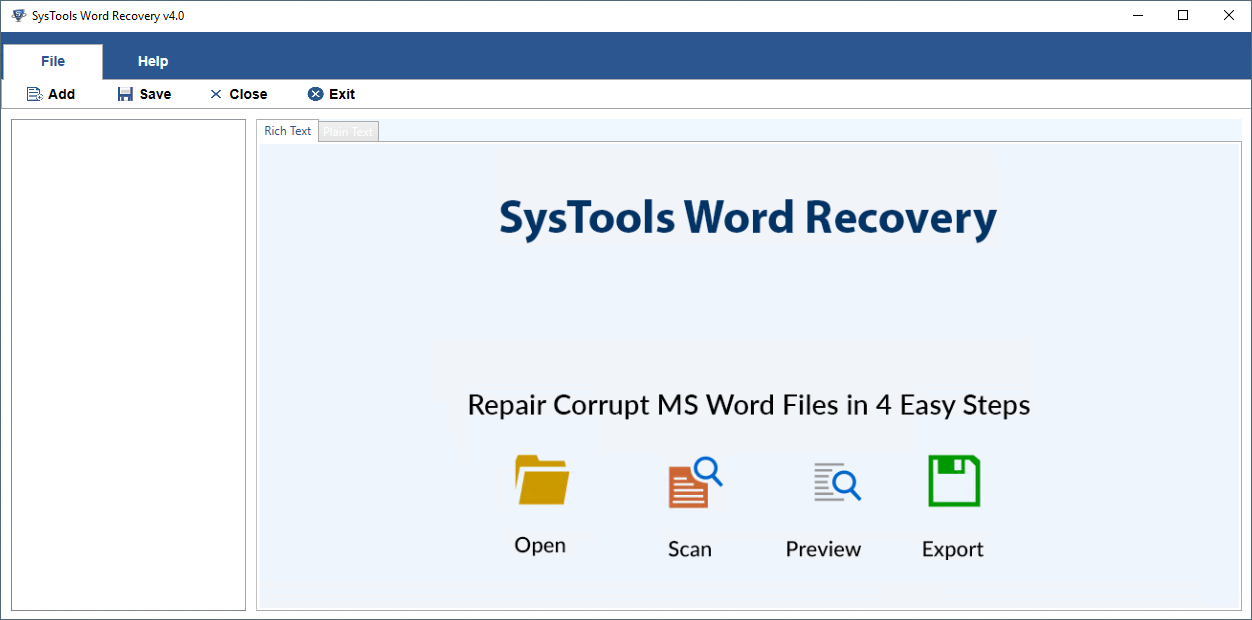
STEP 1: Launch and run the Word Recovery Tool.
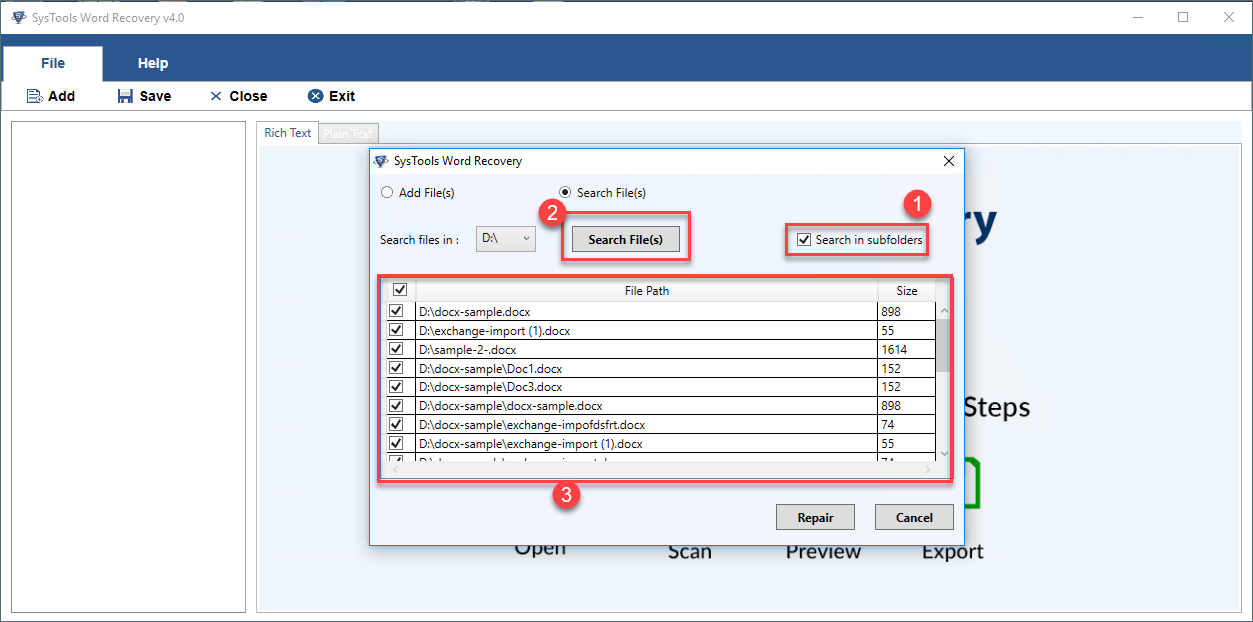
STEP 2: Browse the corrupted word files in 3 modes.
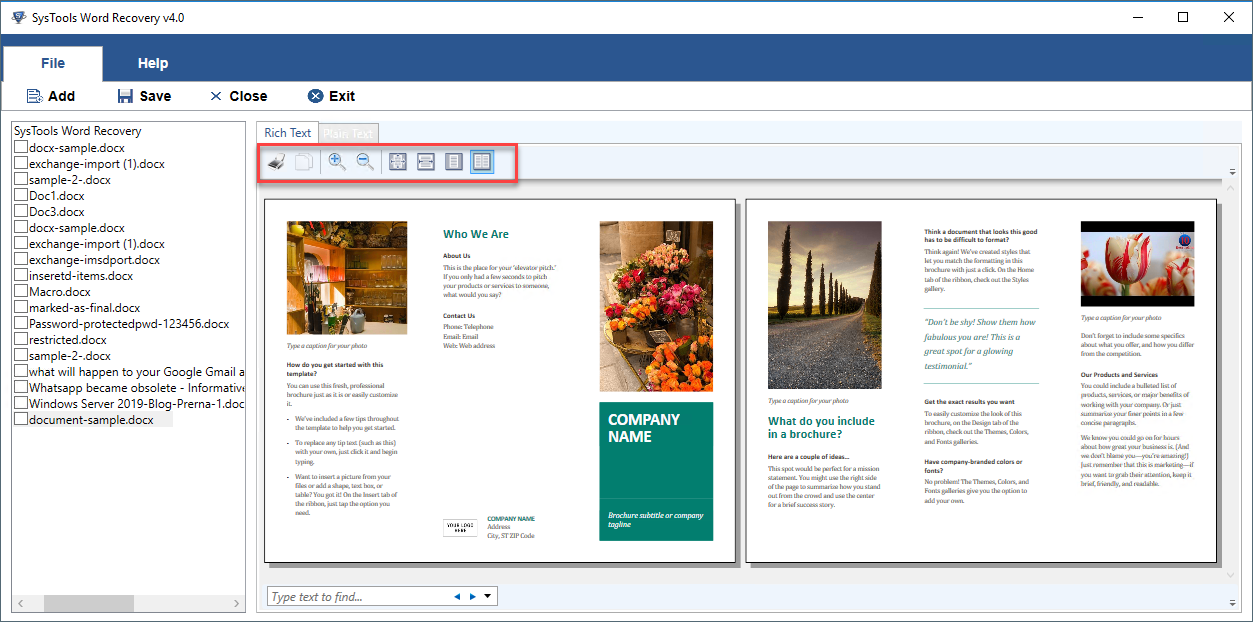
STEP 3: Preview the recover DOCX file with 2 formats.
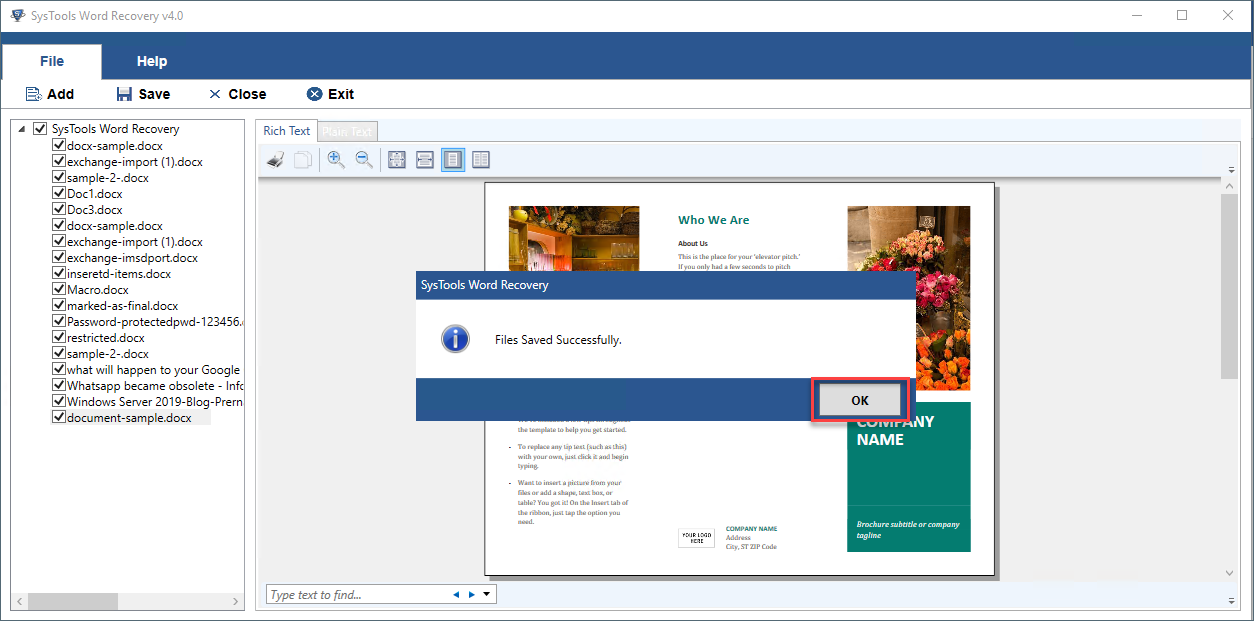
STEP 4: Save the repair Word (.docx) document.
Product FAQs
To Fix Corrupted Word File Errors- Word Repair Software is the Best Solution

Word Repair Tool resolves error message for corrupted Microsoft Word Document which led to not responding of DOCX file and also, helps to open Word file in a healthy format.
Also it resolves these kind errors
It helps in repairing damaged, corrupted, salvaged, broken DOCX file.
The user-friendly interface makes it different from other available softwares. Also, it reduces the complexity of Word file recovery.
Word Recovery Tool provides a full version to recover & open Docx file to healthy format without data loss. The purchased version of the Word repair tool is capable to load, scan, preview, and recover corrupted Word file, even though it is highly corrupted, large size, with huge data embedded in it etc. Get the Word document recovery tool downloaded, confirm the recovery capability, and then move for the purchase of DOCX Repair Tool.
Ronald Dickens, France
27/02/2017
"I can't believe I got corrupted Word DOCX file's data back and now I can access my damaged .docx file easily! It is all because of the Word File Repair Tool. Microsoft DOCX file recovery software is effective, advance, and highly affordable. I rate this tool with 5 stars."
Henryka, Poland.
12/01/2017
"I would like to convey a huge Thanks to the developers and the support team for providing me with this wonderful Word Recovery Software. This Word Repair Tool works in a perfect way and its simple interface, which enables even a novice user to repair a crashed .docx file without any complications”.
Charlie Puth, USA
13/10/2016
“Thank you so much to offer a Word Repair Software. It is much-needed software for this hour. This Microsoft DOCX file recovery software offers 3 modes to add files for repairing a damaged Word document. From a long time, I am facing issues with Word document recovery but, this Word Recovery Software solved most of the problems”.
Jennifer, Greece
15/09/2016
“I am really impressed by the layout they are offered to preview the recovered Word files. Word repair tool has a quite easy and user-friendly interface to use".
Liam, New York
19/07/2016
“Word document recovery tool is worth purchasing as it has different and more features. I have used this Word Recovery Application many times in this past 6 months and it gives satisfactory results. In fact, this auto-detect option for DOCX documents minimizes the time for searching the corrupted Word file in the system”.
John, Montreal
12/06/2016
“Error occurs in Word file causes a lot of data loss. But Word file Recovery Tool is the solution to resolve all most every error message occurs due to corrupted Word file. Word repair tool resolves errors like “Word file cannot be open”, also repair Word files".



